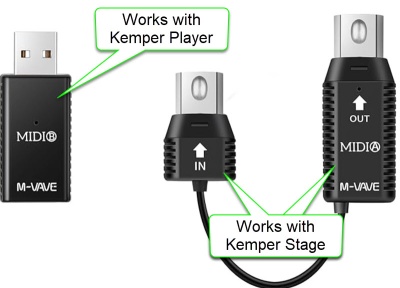
The XSONIC Airstep finds the M-VAVE USB-A automatically.
I've read that the WIDI Bud Pro works but I have not tried it.
Rig Buttons
These settings will emulate the behaviour of the Kemper Remote or Kemper Stage.
Switch A
Field
Value
Name
Rig/Slot 1
Toggle Mode
Off
LED Display
Normal Mode
Message 1
Field
Value
Trigger
Release
Message Type
MIDI
Output Interface
ALL
MIDI Type
Control Change
MIDI Channel
1
CC Number
50
CC Value
1
Message 2
Field
Value
Trigger
Release
Message Type
MIDI
Output Interface
ALL
MIDI Type
Control Change
MIDI Channel
1
CC Number
50
CC Value
0
Switch B
Field
Value
Name
Rig/Slot 2
Toggle Mode
Off
LED Display
Normal Mode
Message 1
Field
Value
Trigger
Release
Message Type
MIDI
Output Interface
ALL
MIDI Type
Control Change
MIDI Channel
1
CC Number
51
CC Value
1
Message 2
Field
Value
Trigger
Release
Message Type
MIDI
Output Interface
ALL
MIDI Type
Control Change
MIDI Channel
1
CC Number
51
CC Value
0
Switch C
Field
Value
Name
Rig/Slot 3
Toggle Mode
Off
LED Display
Normal Mode
Message 1
Field
Value
Trigger
Release
Message Type
MIDI
Output Interface
ALL
MIDI Type
Control Change
MIDI Channel
1
CC Number
52
CC Value
1
Message 2
Field
Value
Trigger
Release
Message Type
MIDI
Output Interface
ALL
MIDI Type
Control Change
MIDI Channel
1
CC Number
52
CC Value
0
Switch D
Field
Value
Name
Rig/Slot 4
Toggle Mode
Off
LED Display
Normal Mode
Message 1
Field
Value
Trigger
Release
Message Type
MIDI
Output Interface
ALL
MIDI Type
Control Change
MIDI Channel
1
CC Number
53
CC Value
1
Message 2
Field
Value
Trigger
Release
Message Type
MIDI
Output Interface
ALL
MIDI Type
Control Change
MIDI Channel
1
CC Number
53
CC Value
0
Switch E
Field
Value
Name
Rig/Slot 5
Toggle Mode
Off
LED Display
Normal Mode
Message 1
Field
Value
Trigger
Release
Message Type
MIDI
Output Interface
ALL
MIDI Type
Control Change
MIDI Channel
1
CC Number
54
CC Value
1
Message 2
Field
Value
Trigger
Release
Message Type
MIDI
Output Interface
ALL
MIDI Type
Control Change
MIDI Channel
1
CC Number
54
CC Value
0
Summary of Kemper MIDI Logic (Slots + Morph)
CC#50–54: Load Slots 1–5 in Performance Mode or Rigs 1–5 in Browser Mode.
Morph Triggering: If the same CC is sent again (with value 1–127), Morph is engaged.
Morph Release: Sending value 0 disengages Morph.
Momentary vs Latching: Controlled by the Rig’s internal “Momentary” setting.
Why Your Airstep Setup Works
Press = CC#50–54 value 1 → Loads Rig or Slot
Release = CC#50–54 value 0 → Ends Morph (if Momentary is enabled)
Repeated Presses → Toggle Morph (if Momentary is disabled)
Single Button Logic → Matches Kemper Stage/Remote behavior exactly
Kemper MIDI Documentation
If Rig Button Morph is activated in System Settings, and the PROFILER receives subsequent control changes #50-#54 following the initial Slot load, these will trigger Morphing.
So, the same button could be used to first load a Rig, and then act as a Morph Button for that Rig. To support all functions, values 1-127 should be sent when the button is hit, and value 0 should follow when the button is released. The setting of the “Momentary” option in Rig Settings
determines whether the Morphing latches the morph sound and base sound, or if it immediately returns to the base
sound as soon as you release the button.
Effects Stomps
Airstep Bank 2 – Stomp Mode Control (Kemper Profile Player)
When I use both the Airstep and the Airstep Lite, I use the Airstep for Rig buttons (above) and the Airstep Lite for Effects Buttons (below)
CC# 75-78 to map to Effects buttons 1-4, and the last button set to Tuner on/off.
I did this instead of using CC# 17-22, which map to Modules A-D, because sometimes I use the Kemper Profile Player without the Airstep, and I wanted to use the Kemper Player mapping instead of the Profiler mappings. If I change the Effects buttons 1-4 on the Player, I wanted the Airstep to match.
Switch A
Field
Value
Name
Effect Button 1
Toggle Mode
On
LED Display
Toggle Mode
Toggle On Message 1
Field
Value
Message Type
MIDI
Output Interface
ALL
MIDI Type
Control Change
MIDI Channel
1
CC Number
76
CC Value
1
Toggle Off Message 1
Field
Value
Message Type
MIDI
Output Interface
ALL
MIDI Type
Control Change
MIDI Channel
1
CC Number
76
CC Value
0
Switch B
Field
Value
Name
Effect Button 2
Toggle Mode
On
LED Display
Toggle Mode
Toggle On Message 1
Field
Value
Message Type
MIDI
Output Interface
ALL
MIDI Type
Control Change
MIDI Channel
1
CC Number
76
CC Value
1
Toggle Off Message 1
Field
Value
Message Type
MIDI
Output Interface
ALL
MIDI Type
Control Change
MIDI Channel
1
CC Number
76
CC Value
0
Switch C
Field
Value
Name
Effect Button 3
Toggle Mode
On
LED Display
Toggle Mode
Toggle On Message 1
Field
Value
Message Type
MIDI
Output Interface
ALL
MIDI Type
Control Change
MIDI Channel
1
CC Number
76
CC Value
1
Toggle Off Message 1
Field
Value
Message Type
MIDI
Output Interface
ALL
MIDI Type
Control Change
MIDI Channel
1
CC Number
76
CC Value
0
Switch D
Field
Value
Name
Effect Button 4
Toggle Mode
On
LED Display
Toggle Mode
Toggle On Message 1
Field
Value
Message Type
MIDI
Output Interface
ALL
MIDI Type
Control Change
MIDI Channel
1
CC Number
76
CC Value
1
Toggle Off Message 1
Field
Value
Message Type
MIDI
Output Interface
ALL
MIDI Type
Control Change
MIDI Channel
1
CC Number
76
CC Value
0
Switch E
Field
Value
Name
Stomp (e.g. Tuner)
Toggle Mode
On
LED Display
Toggle Mode
Toggle On Message 1
Field
Value
Message Type
MIDI
Output Interface
ALL
MIDI Type
Control Change
MIDI Channel
1
CC Number
31
CC Value
1
Toggle Off Message 1
Field
Value
Message Type
MIDI
Output Interface
ALL
MIDI Type
Control Change
MIDI Channel
1
CC Number
31
CC Value
0
Notes
Toggle Mode On lets the Airstep track internal switch state, so LEDs reflect effect status (assuming Kemper doesn’t override).
CC#75–79 are fully valid and can be assigned to any effect slot in Kemper’s MIDI settings.
You can remap these CCs in Kemper’s System Settings to match your preferred stomp layout.
Airstep Configuration – Kemper Profiler Player Looper Control
Use the Airstep Preset for KPA Looper. It works, mimicking the Profiler Foot Controller and the Kemper Stage.
For each function (e.g. Rec/Play/Overdub), there is a table with five rows. Each row represents an Airstep "Message". All the values are the same except for the second row in each table (88,89,90,91,92,93)
What follows is the documentation in case you want to reassign the buttons. In my case, I never use "Reverse" so I replaced it with "Undo".