(14 intermediate revisions by the same user not shown)
Line 5:
Line 5:
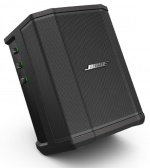
[[File:S1 Pro Tilt.jpg|link=https://www.bose.com/en_us/products/speakers/portable_pa_speakers/s1_pro_system.html#v=s1_pro_system_with_battery_black|right|150px]]
[[File:S1 Pro Tilt.jpg|link=https://www.bose.com/en_us/products/speakers/portable_pa_speakers/s1_pro_system.html#v=s1_pro_system_with_battery_black|right|150px]]
Introduced January 23, 2018
Introduced January 23, 2018 - replaced by [[S1 Pro+]] 2023
Discuss it here: {{Community|link=https://www.bosepro.community/g/portable/forum/s1-pro|text=S1 Pro System Community}}
[https://support.bose.com/s/product/s1-pro-portable-bluetooth-speaker-system/01t8c00000OydMeAAJ?language=en_US Bose S1 Pro Support site]
Discuss it here: {{Community}}
== Documentation ==
== Documentation ==
Line 21:
Line 23:
== Related Products ==
== Related Products ==
[[S1 Pro+]]
[[Bose S1 Pro Compared to Bose L1® Compact]]
[[Bose S1 Pro Compared to Bose L1® Compact]]
<html>
<html>
Line 36:
Line 42:
-->
-->
</div>
</div>
</div>
</div>
== Input/Output Panel==
== Input/Output Panel==
Line 59:
Line 65:
=== Microphone vs Guitar Volume ===
=== Microphone vs Guitar Volume ===
See [[S1 Pro Microphone vs Guitar Volume]]
See [[S1 Pro Microphone vs Guitar Volume]]
<!--
<!--
Line 136:
Line 144:
== S1 Pro LEDs ==
== S1 Pro LEDs ==
{{:S1 Pro System LEDs}}
<!--{{:S1 Pro System LEDs}}
-->
<html>
<details><summary>S1 Pro LEDs</summary></html>
{{S1 Pro LEDs}}
<html></details></html>
<!-- {{S1 Pro LEDs}} -->
== Battery ==
== Battery ==
See [[S1 Pro Battery]]
<!-- {{S1 Pro Battery}}
<!-- {{S1 Pro Battery}}
-->
-->
<html>
<details><summary>S1 Pro Battery</summary></html>
{{S1 Pro Battery}}
<html></details></html>
== Pole Cup Switch ==
== Pole Cup Switch ==
Line 155:
Line 172:
== Channel 3 Volume Control ==
== Channel 3 Volume Control ==
<html>
<details><summary>S1 Pro Channel 3 Volume</summary></html>
{{S1 Pro Channel 3 Volume}}
{{S1 Pro Channel 3 Volume}}
<html></details></html>
== Noisy Volume Controls ==
== Noisy Volume Controls ==
Line 192:
Line 212:
== Auto EQ ==
== Auto EQ ==
If you take a loudspeaker and put it on a speaker stand, then a table top, and then on the floor, the sound will change*. When the speaker is on a table top or the floor, it is interacting with the boundaries (table top, floor, walls and ceiling too). This means, if you want great sound in all situations you have to EQ the loudspeaker.
<html>
<details><summary>S1 Pro Auto EQ</summary></html>
Bose tuned the S1 Pro to sound great in all four positions (speaker stand, table top, floor (both tilt-back and horizontal)) taking into account the boundaries. And the engineers carefully considered how you would be using the S1 Pro . That's why there are two settings for the floor (tilt-back and monitor).
{{S1 Pro Auto EQ}}
<html></details></html>
I encourage you not to second-guess the automatic EQ. To use them in ways other than Bose intended you'd have to put the loudspeaker in a free field (a room without reflections).
But if you could put the S1 Pro in a free field here's what might hear.
⇒ Using the speaker stand position as a reference (basically, flat):
⇒ Table top: a little less bass than speaker stand
[[File:Auto EQ Table.png|640px]]
⇒ Tilt-back: a little less bass than Table top.
[[File:Auto EQ Tilt Back.png|640px]]
⇒ Horizontal: about the same as Tilt-back except there's some EQ treatment to support use as a monitor.
[[File:Auto EQ Floor Monitor.png|640px]]
== Line Out ==
== Line Out ==
Line 298:
Line 301:
We have explored ways to change the response in the low frequencies. We found making the S1 Pro system more tolerant of heavy bass diminishes the overall performance in other ways. We don't have plans to change the sound profile of the S1 Pro system through a firmware update.
We have explored ways to change the response in the low frequencies. We found making the S1 Pro system more tolerant of heavy bass diminishes the overall performance in other ways. We don't have plans to change the sound profile of the S1 Pro system through a firmware update.
Adjust the volume of the source device output to the reference or nominal output level.
On analog consoles this may be marked as unity or 0 dB.
On digital consoles this may be marked as -18 dBFS[2][3]. The exact value (-18 dBFS to -20 dBFS) may vary depending your location[4].
Refer to the manual for the source device for details.
If the source device does not have metering or indicators, set the output as high as you can without hearing distortion or seeing red indicator lights.
While playing/singing as loud as you will during your performance, bring up the channel volume until you see solid green on the channel indicator light. Occasional flickers of red are okay. If you see solid red or you hear distortion, turn down the volume.
Input Gain
Channels 1 and 2
XLR: -infinity to + 49 dB
1/4 inch (6.3 mm) Balanced input (Tip-Ring-Sleeve): -infinity + 42 dB
1/4 inch (6.3 mm) Unbalanced input (Tip-Sleeve): -infinity + 36 dB
Aux
1/8 inch (3.1 mm) Sterero (Tip-Ring-Sleeve): -infinity to + 17 dB
Recommended Connections
XLR:
Microphones
Microphone-level signals
1/4 inch (6.3 mm) Balanced input (Tip-Ring-Sleeve): Balanced line-level signals
The Microphone Preset includes a sharp low-cut filter, keeping only that part of the audio spectrum where the microphone is useful. Using the microphone with this preset minimizes bass regeneration. The microphone preset was developed for close microphone use (“eat the mic”), which is the best way to optimize your vocal signal for tone and gain before feedback[5].
About the presets: No mic that I know of sounds good for close vocal, even for recording for that matter. All our presets compensate for this. A lot of these mics sound a lot more natural when you back off a foot or so from them. Of course, this is true in the studio too. No one does this for a live performance (backs very far off the mic) since you want to maximize gain before feedback by eating the mic. And so then you get funny sound and so then you need our presets to make it natural. [6]
When you are not using the S1 Pro System you can leave the power switch in the standby position (middle) or the quick-charge position (bottom). If the S1 Pro System is not connected to AC power, it won't matter if you choose the middle or bottom position.
In Transit
You can put the S1 Pro System power switch in the bottom position (quick charge) position when transporting the unit. This may reduce the likelihood the switch will get bumped to the on position.
Charging
When you are charging the S1 Pro System you can put the power switch in the standby position (middle) or the quick-charge position (bottom).
More detail.
S1 Pro LEDs
S1 Pro LEDs
Summary
There are two power-related LEDs: Power on the front of the system and Battery Status on the back of the system next to the power switch.
There are three LEDs for signal input.
There is one LED for Bluetooth.
S1 LED status
Power LED
Power LED on the front of the unit
Off
System is off
Blue
System is on
Blue (flashing)
System is in low power sleep mode Happens after dormant for an hour Resumes automatically when an audio signal is present
Red
System fault
Power/Battery LED
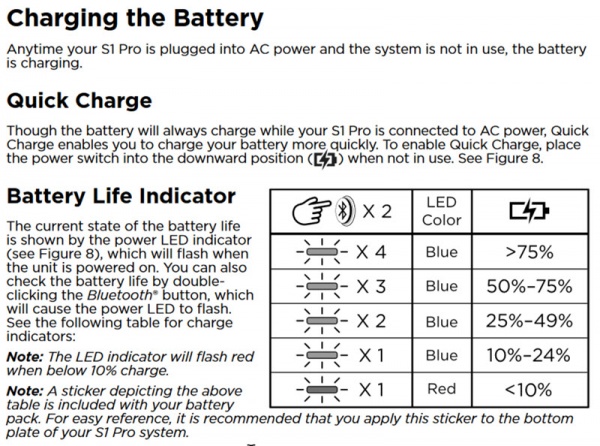
If using the battery the LED next to the system power switch shows the battery's charge state by flashing when powered on. To check the charge at any time, double-press the
Bluetooth button in the Input 3 section.
Blue - 4 flashes
75 - 100% charge
Blue - 3 flashes
50 - 74% charge
Blue - 2 flashes
25 - 49% charge
Blue - 1 flash - may appear to be flashing
10 - 24% charge
Red - 1 flash
Less than 10% charge
Signal LED
There are 3 signal LEDs: one above the volume knob for Inputs 1, 2 and 3.
Off
No or low level signal present
Green
Signal present
Red
Signal clipping
Bluetooth LED
The Bluetooth LED is located on the Bluetooth button under Input 3 on the connection / control panel.
The full output of the S1 Pro system is available even when running on the internal battery. This is unlike some systems that throttle performance to extend the battery life.
Your run time will vary based on:
Volume and to a lesser extent the tone controls
Higher volume and turning up the tone controls draws more energy than lower settings.
Program material
Prerecorded music is usually compressed. This may draw more power than live music at the same perceived volume because live music has more dynamics (lower draw in quiet moments).
Charging Times
S1 Pro Standby
Estimates:
6.0 hours Trickle charge (system idle, connected to AC Power), switch in Standby or Play position
2.5 hours Fast charge (connected to AC Power), switch in Fast Charge (down) position
Checking the Battery Level
To check the battery, turn on the S1 Pro (switch in the top position). Wait until the power light is steady blue. Double tap the Bluetooth button (tap tap in under a second). Count how many times the power light blinks before returning to steady blue.
NOTE If you are running your S1 Pro System and battery LED turns solid red - the battery is nearly out of power. Connect to AC power to keep the show going.
Battery Specifications
Battery Life
The S1 Pro uses a lithium-ion battery. Individual battery performance will vary due to battery age, storage conditions, and the number of charge cycles.
S1 Pro Standby
Bose does not guarantee how long a lithium-ion battery will retain its charge. However, we expect a fully charged battery in a new S1 Pro system will last 30 days with the power switch in the “Standby” (⏻) position if the system is using Firmware 7.1.5[7] or later.
After 30 days of non-use, the battery will enter Sleep Mode. Bose recommends that you wake up[8] the battery and fully charge it at least once a year. If you leave it in Sleep Mode for longer than a year, the battery may completely discharge and become unusable.
Sleep mode is the lowest current draw of the integrated circuits (ICs) in the battery pack. If the ICs were left unchecked, eventually they would drain the cells below their safety threshold. When the cells are allowed to discharge below a certain level, they become susceptible to dendritic growths within the cells. This can lead to catastrophic failures of the cells. The battery fails and is non-recoverable.
We use the sleep mode (or shipping mode) to extend the timeline long enough to greatly reduce the occurrence of failed battery packs.
If you have lithium-ion battery powered tools, you have probably experienced this. You put the tool away at the end of the season. Next year, you take them out again to use them only to find the battery no longer works and you have to replace it (you prevent this by storing them in the charger instead of leaving it in the tool). The use-profile for the S1 Pro System is that it will be used in the warmer months, and with a very high likelihood, it will be put away in the colder months. This is why we put it back into sleep mode when not in use for more than 30 days.
Flying with the Lithium Ion Battery
Here's some information about Flying with Lithium Ion batteries from the FAA
Size limits: Lithium metal (non-rechargeable) batteries are limited to 2 grams of lithium per battery. Lithium ion (rechargeable) batteries are limited to a rating of 100 watt hours (Wh) per battery. These limits allow for nearly all types of lithium batteries used by the average person in their electronic devices. With airline approval, passengers may also carry up to two spare larger lithium ion batteries (101-160 watt hours). This size covers the larger after-market extended-life laptop computer batteries and some larger batteries used in professional audio/visual equipment.
The battery in the S1 Pro is rated at 79.20 Wh. That's not in the documentation, but it is on the label on the battery.
Pole Cup Switch
S1 Pro Pole Cup Switch
The S1 Pro uses an accelerometer to determine if it is in the tilt-back, horizontal or vertical position. It also has a switch inside the pole cup to determine if it is mounted on a speaker stand. Based on the orientation and the switch, the S1 Pro automatically applies the correct EQ. If you depress the switch the speaker stand EQ is applied regardless of the orientation of the S1 Pro.
Here's a picture of the switch inside the pole cup.
Warning - Do NOT use Speaker Stands Like This
Bose recommends using speaker stands that have solid, smooth surfaces. Do not use stands like the one shown below. It will damage the switch in the pole cup.
Warning - Do NOT use speaker pole adapters
Bose recommends that you do NOT use speaker stand adapters like the Hercules SS100B. You could damage switch in the pole cup.
Channel 3 Volume Control
S1 Pro Channel 3 Volume
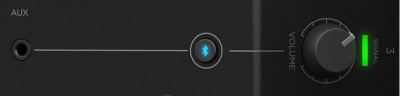
The S1 Pro System channel 3 volume control behaves differently than the volume controls on channels 1 and 2.
Slow to Respond
If you find the volume control seems slow to respond (especially between 7-11 o'clock) please turn up the volume at the source (Bluetooth or physical connection).
For Bluetooth connections, if you set the volume on the source device to maximum, this will give you the greatest usable range on the S1 Pro Aux Channel volume control.
Steps in Volume
The S1 Pro has a digital gain knob on channel 3 which is divided into incremental steps. When you slowly turn the volume knob up with a strong input signal present, you may hear steps in loudness.
We are aware of this behavior and it is not a symptom of a fault or malfunction.
Volume Cut Off
This affects the sound connected to the Aux input and Bluetooth streaming.
The sound stops at about 8:00 o'clock although it appears that should happen at 7:00 o'clock on the dial. The transition to silence
will be smoother when the source signal is low
will be more abrupt when the source signal is high
This is normal for this control.
The control is digital (functioning in steps). With a low signal source, the change you hear for each step will be small. With a high signal source, the change you hear for each step will be larger.
Noisy Volume Controls
On S1 Pro system channels 1 and 2: When you rotate the volume controls back and forth within 10 seconds of turning on the unit, you may hear a scratchy sound.
This is not a symptom of a hardware issue with the volume controls that warrants concern.
The noise is related to a start-up process within the unit, not the volume controls. The noise you hear is not the result of a physical problem with the volume controls.
When you turn on the unit and rapidly turn one of the volume controls back and forth you may hear a noise. This can happen on either channel, 1 or 2.
After several seconds, the sound stops. At this point, the volume controls on both channels 1 and 2 should work as expected, quietly.
If you cycle the power off and back on, you can get the same result on the other channel, 1 or 2.
If you turn on the unit and let it sit for 20 seconds, the volume controls are quiet. That doesn't mean you have to wait for 20 seconds before you can use the unit. You just have to wait for 20 seconds if you don't want to hear the noise when you rotate the volume controls quickly.
In the speaker stand, tabletop, and tilt-back orientations
Horizontal 120 degrees
Vertical 50 degress
In the Horizontal (monitor) orientation
Horizontal 50 degrees
Vertical 120 Degrees
Auto EQ
S1 Pro Auto EQ
If you take a loudspeaker and put it on a speaker stand, then a table top, and then on the floor, the sound will change*. When the speaker is on a table top or the floor, it is interacting with the boundaries (table top, floor, walls and ceiling too). This means, if you want great sound in all situations you have to EQ the loudspeaker.
Bose tuned the S1 Pro to sound great in all four positions (speaker stand, table top, floor (both tilt-back and horizontal)) taking into account the boundaries. And the engineers carefully considered how you would be using the S1 Pro . That's why there are two settings for the floor (tilt-back and monitor).
I encourage you not to second-guess the automatic EQ. To use them in ways other than Bose intended you'd have to put the loudspeaker in a free field (a room without reflections).
But if you could put the S1 Pro in a free field here's what might hear.
⇒ Using the speaker stand position as a reference (basically, flat):
⇒ Table top: a little less bass than speaker stand
⇒ Tilt-back: a little less bass than Table top.
⇒ Horizontal: about the same as Tilt-back except there's some EQ treatment to support use as a monitor.
¼ inch (6.3 mm) Tip-Ring-Sleeve jack: Nominal +2.4 dBu, Max +20 dBu
Output Impedance: 9.4 kilo-ohm kΩ
The Line Out is not affected by the Auto EQ. It's the combined output of all three channels (with volume controls, ToneMatch Presets, tone controls, and reverb) and is same whether the unit is in tilt-back, monitor, tabletop or on a speaker stand.
Notes
Using a Tip-Sleeve unbalanced cable will result in a drop in the audio level of -6dBu.
There is no limiter on this output so you may get more than the rated maximum, but it could sound distorted.
S1 Pro Daisy Chain (one to another)
S1 Pro Daisy Chain Settings
This is an overview of how to connect one S1 Pro System to another.
On the first S1 Pro turn off the volumes of all channels
Run the LINE OUT to the second S1 Pro system using a balanced cable (1/4 inch (6.3 mm) Tip-Ring-Sleeve cable
On the second S1 Pro set the volume to 10:00 o'clock. This should give you the same volume on the second unit as the first
On the first S1 Pro bring up the volume to the appropriate level on the channels you are using
There is no reason to turn the second S1 Pro system above 10:00 o'clock because it will be louder than the first system and the signal will clip and distort before the first system does.
On the second S1 Pro System, for each channel you are connecting to the first S1 Pro System use these settings while you are setting up.
Reverb OFF
Bass at 12:00 o'clock
Treble at 12:00 o'clock
ToneMatch switch OFF
You can adjust the Reverb, Bass, and Treble after you get your basic sound working.
S1 Pro+
You can also connect to the Channel 3 Aux input. For best results, use a 1/4 inch (6.3 mm) Tip-Ring-Sleeve cable.
Adjust the volume of the source device output to the reference or nominal output level.
On analog consoles this may be marked as unity or 0 dB.
On digital consoles this may be marked as -18 dBFS[9][10]. The exact value (-18 dBFS to -20 dBFS) may vary depending your location[11].
Refer to the manual for the source device for details.
If the source device does not have metering or indicators, set the output as high as you can without hearing distortion or seeing red indicator lights.
While playing/singing as loud as you will during your performance, bring up the channel volume until you see solid green on the channel indicator light. Occasional flickers of red are okay. If you see solid red or you hear distortion, turn down the volume.
Combo Inputs
S1 Pro Channels 1 and 2 have combo inputs that accept
XLR (balanced mono)
Microphone or Line-Level inputs
1/4 inch (6.3 mm) Tip-Ring-Sleeve connection (balanced mono)
Line-Level inputs
1/4 inch (6.3 mm) Tip-Sleeve connection (unbalanced mono)
Line-Level inputs and instruments (e.g. guitars, keyboards, guitar processors, loopers)
When using a third-party device (e.g., mixer or another line-level source) should I use the XLR or 1/4 inch inputs?
The S1 Pro 1/4 inch Tip-Ring-Sleeve inputs are best suited for line-level balanced inputs. This is a better match for the signal level.
The S1 Pro XLR inputs are best suited for microphones.
When the S1 Pro Channel input lights hit red or you hear distortion, the signal is clipping and you've reached the maximum usable volume. From the source, if the XLR outputs are line-level and the 1/4 inch Tip-Ring-Sleeve outputs are line-level, it won't matter which type of cable you use. They'll both get the job done, although the volume control setting will be lower with the XLR connection. That doesn't indicate more headroom. The maximum usable volume is the same either way.
Alternate Connection
You can use an XLR cable (mic cable) from a Line Level Source (e.g., L1 Pro, S1 Pro+) to second S1 Pro System channels 1 or 2 (XLR inputs), but the signal may clip, overload, or be too high to control the volume. To attenuate (reduce) the signal, use a -20 dB or -30 dB Pad
Turn on the Bluetooth feature on your mobile device. Note: The Bluetooth feature is usually found in the Settings menu.
Press and hold the Bluetooth Pair button for two seconds. Note: When ready to pair, the Bluetooth button will flash white.
Select your Bose® SI Pro system from the device list.
Note: When the device pairs successfully, the Bluetooth button will turn solid white.
Note: If your paired phone receives a call, any music playing will be paused and the ring will come through the phone: no calls or notifications will come through the SI Pro.
Once you have paired the S1 Pro system to a Bluetooth device, the S1 Pro system will automatically connect to that device when you turn on the S1 Pro system if it is powered on and within range. If you want to terminate that connection, terminate the connection on the Bluetooth device.
You cannot turn off Bluetooth however if you clear the Bluetooth device list, you won't be able to connect to the S1 Pro system until you create a new paired connection.
If you press and hold the Bluetooth button until it goes dark (7-10 seconds), this clears the Bluetooth device list on the {{S1 Pro)}. You will not be able to connect to the S1 Pro system unless you put it into pairing mode (press and hold the Bluetooth button until it blinks (approximately 3 seconds) or put the S1 Pro system in Standby mode (power switch middle position) or Fast Charge (power switch in lower position) and then turn the S1 Pro system on again.
When you turn on the power on the S1 Pro, it will attempt to connect to a paired device via Bluetooth. If there are no paired device, it will go into pairing mode.
If the S1 Pro cannot connect to a paired device, the Bluetooth light will blink for about two minutes while it is attempting to connect. If it doesn't make a connection, the Bluetooth light will turn off (time out). At that point, the Bluetooth is off until the next time you turn the power off/on.
Disconnect a Bluetooth connection
If you have Bluetooth connection active and you want to disconnect it. If you manually disconnect, the S1 Pro system will time out after about 2 minutes, and Bluetooth will remain off until the next time you power off/on.
IOS
Starting with iOS 9, Apple has added a new option for Bluetooth devices:
Open Settings, select Bluetooth
Tap the "i" circle button to the right of the accessory.
From there, you can see the new "Disconnect" option, alongside the legacy "Forget This Device" choice.
Android
Disconnect or Unpair from a Bluetooth Device
From home, tap Apps > Settings > Connections tab > Bluetooth.
Tap the ON/OFF slider to turn Bluetooth on.
Tap the connected device, and then tap OK to disconnect.
Reconnect a Bluetooth Connection after a time out
If the S1 Pro system Bluetooth light is off (because it has timed out), if you press it briefly, it will blink.
With the Bluetooth light blinking, I've been able to initiate a Bluetooth connection from a previously paired device. This worked with:
Will Bose issue a firmware update to change the bass response in Bluetooth content?
We tested the S1 Pro system with a wide range of applications including live music, music playback with various styles of music, public speaking, and more. We tuned the bass response for the best overall performance for the widest number of people. We continue to listen to customer comments here and through all channels. We know that most of our customers are extremely happy with the sound of the S1 Pro system.
We have explored ways to change the response in the low frequencies. We found making the S1 Pro system more tolerant of heavy bass diminishes the overall performance in other ways. We don't have plans to change the sound profile of the S1 Pro system through a firmware update. Source
S1 Pro System Bass Distortion with Bluetooth through Channel 3
There have been some discussions in the Bose Portable PA Community about bass distortion with Bluetooth sources through Channel 3. Will Bose issue a firmware update to fix this?
If you hear bass distortion you're hitting the maximum volume (bass) the S1 Pro system can handle. We tested the S1 Pro system with a wide range of applications including live music, music playback with various styles of music, public speaking, and more. We tuned the bass response for the best overall performance for the widest number of people. We continue to listen to customer comments here and through all channels. We know that most of our customers are extremely happy with the sound of the S1 Pro system. If you need more overall volume for music playback you need a bigger enclosure. The L1 Compact and the larger L1 systems may be a better choice.
We have explored ways to change the response in the low frequencies. We found making the S1 Pro system more tolerant of heavy bass diminishes the overall performance in other ways. We don't have plans to change the sound profile of the S1 Pro system through a firmware update.
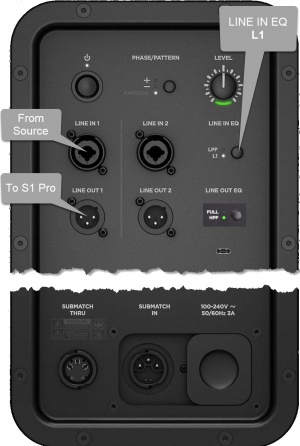
Start with the Volume on S1 Pro and Sub, as shown. Adjust as necessary from there.
The picture shows a stereo setup. The signal flow is from left to right.
Recommended cable
Use an XLR to 1/4 inch (6.35 mm) Tip-Ring-Sleeve cable for best results.
If you use an XLR to XLR cable, the signal may be too hot for the S1 Pro system.
Alternative Connection
Can I connect the S1 Pro Line Out to the Sub?
The method described above is preferred, but you can use the S1 Pro system as the sound source (e.g., microphone and guitar and backing tracks via Bluetooth)
Note the following:
The S1 Pro system will sound the same as without the subwoofer (62 Hz - 17 kHz)
The Sub1 or Sub2 will cover from 40 Hz (Sub1) 37 Hz (Sub2) to 150 Hz
You will be able to push S1 Pro system harder (louder) if you route the signal as described at the top of this article
S1 Pro with F1 Subwoofer
Can I use one or two S1 Pro Systems with an F1 Subwoofer?
What makes the Bose S1 Pro multi-position PA system different from other PA systems?
The S1 Pro is the ultimate all-in-one PA, floor monitor, practice amplifier and primary music system. Multiple positions, supported by Auto EQ, ensure that you always sound your best. And with a 3-channel mixer, reverb, Bluetooth® streaming and ToneMatch processing onboard, the S1 Pro is ready to be your go-anywhere PA.
How do I set the system up?
1.) Choose your system orientation based on the application.
2.) Plug in the AC power cord or use optional battery
3.) Connect audio source. If using a guitar or microphone, set the ToneMatch switch to the appropriate setting.
4.) Turn the power on and turn up the volume controls.
What is the optimal placement when using the S1 Pro?
The versatile S1 Pro system operates in four unique modes and can be set up differently based on the application. Elevated Surface
Position the S1 Pro on a surface. This projects sound clearly and evenly throughout the audience, and ensures that audience members enjoy the full frequency range of the system. Tilt-Back
For performances where your audience is close to you, tilt the S1 Pro onto its back edge. For best results, the performer should stand or sit to one side of the loudspeaker to avoid blocking sound from the audience. Monitor Mode
To use the S1 Pro as a personal floor monitor, place it on the ground horizontally, in front of and pointing toward the performer. Tilt the loudspeaker onto its side edge. Rotate the Bose logo counterclockwise to match your chosen mode. Speaker Stand
Place one or two S1 Pro systems on speaker stands (sold separately) for general-purpose sound reinforcement.
What function does Auto EQ perform?
Auto EQ provides optimal performance by sensing the orientation of the S1 Pro multi-position PA system using internal sensors. Once placed into a new position, the system applies the optimal equalization curve to maximize the quality of sound.
Given its smaller size does the S1 Pro system project sound as far as the L1 Compact system?
The S1 Pro multi-position PA system produces horizontal coverage that is comparable to that of L1 systems. Longer line arrays, such as those found in these systems, can project sound further with less drop-off of sound levels than the smaller array found in the S1 Pro.
Is the S1 Pro multi-position PA system designed for Mobile DJ’s?
Yes. The enhanced portability, easy set-up and professional sound quality of the S1 Pro system makes it suitable for a variety of applications as a smaller PA system: DJs, community and athletic events, business presentations, or wherever high-performance and easy-to-use sound amplification is needed.
The S1 Pro features best-in-class Bluetooth® streaming with one-button pairing. A 3.5 mm input for connecting a DJ mixer, laptop, CD player, or portable audio device allows for wired operation. When making announcements, simply plug a dynamic handheld microphone into one of the microphone/instrument channels.
Two S1 Pro systems are recommended for DJ applications to help reproduce stereo sound. Additionally, a single S1 Pro system can be conveniently used as a satellite system for larger DJ events.
What are the benefits of the integrated ToneMatch processing?
Whether you’re using an acoustic guitar or a handheld dynamic microphone, ToneMatch allows you to match the sound of the source by maximizing the sonic properties through equalization.
How many channels does the S1 Pro system have?
Three. The S1 Pro system has two full-featured channels designed for live speech or musical performance and one channel dedicated to prerecorded material using Bluetooth® streaming or 1/8” (3.5 mm) source.
Does the S1 Pro multi-position PA system have an analog audio output for expansion?
Yes. The S1 Pro multi-position PA system has a balanced line output to send the master mix out to another S1 Pro or to an audio console.
Are the S1 Pro systems compatible with T4S/T8S ToneMatch mixers?
Yes. However, please note that the optional ToneMatch power supply is required for operation. For musical performances that require access to our most advanced tone shaping library, a full suite of studio quality effects, dynamics processing, and expanded inputs and outputs, ToneMatch mixers are the recommended choice.
To use the T4S/T8S ToneMatch mixer with the S1 Pro multi-position PA system, connect a master output of the ToneMatch mixer to input 1 or 2 on the S1 Pro system. Adjust the master level of the ToneMatch mixer to at least 50% and adjust the S1 Pro input volume knob to the desired level.
How can I take advantage of instruments or devices that deliver stereo output?
A single S1 Pro multi-position PA system can combine the two channels and fill the venue with one speaker. For instruments or recorded material where stereo reproduction is essential, two S1 Pro systems can be used to deliver stereo sound.
How are you able to obtain such a high level of performance from a smaller system?
Great care was taken in the design process to ensure that all the speakers and electronics perform as one integrated system. This allows the S1 Pro multi-position PA system to be extremely efficient and maximize its acoustical output while maintaining its small profile.
Is the S1 Pro water resistant?
The S1 Pro is not water resistant. It does however ship with a slip cover for normal transport.
Can I connect an external subwoofer, such as the Bose B1 bass module, to the S1 Pro multi-position PA system?
No, the system does not support adding bass modules. However, the S1 Pro does provide a reasonable amount of bass from its integrated high-excursion woofer.
Where should the S1 Pro multi-position PA system be positioned on stage?
System placement requirements for the S1 Pro multi-position PA system are flexible. For optimal sound for both the audience and performer, position the system directly behind – or behind and slightly off to one side of – the performer.
Does the S1 Pro have a universal power supply, so it can be used with any wall outlet?
Yes. The S1 Pro has a universal power supply that allows it to operate in regions ranging from 100V – 240V. The proper power cord for the specific region in which the system was purchased is included in the product carton.
What is the warranty period on the S1 Pro multi-position PA system?
The S1 Pro multi-position PA system has a two-year limited warranty.
Can the S1 Pro multi-position PA system be used together with an L1 system?
Yes. All systems can share the same stage. The L1 Compact and L1 Model II systems have longer line arrays than the S1 Pro and can project sound further with less drop-off of sound levels than the smaller array found on the S1 Pro.
Where can I learn more about the S1 Pro multi-position PA system or L1 portable line array systems and obtain tips on maximizing the benefits of my system?
Please visit the Bose Pro Portable PA Community
↑Bose recommends that you update your firmware to the latest version for the best performance.
See: S1 Pro Firmware Update for details.
↑To wake up the battery from Sleep Mode, plug your S1 Pro into a power outlet and turn the power switch to the “On” (⏽) position.
See: S1 Pro Battery Sleep Mode for details.
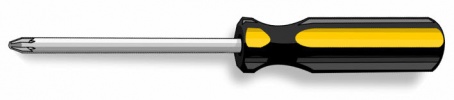
↑ 12.012.1Remove or Install the battery The screw heads are Phillips.
Note: The screws remain attached to the battery cover. You can't misplace or lose them because they don't separate from the battery cover.















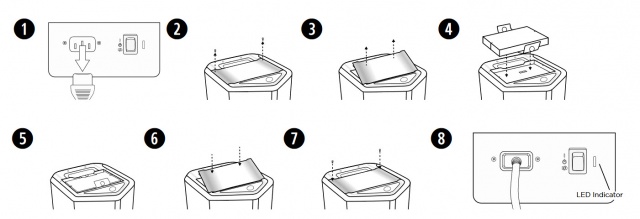

 Note: The screws remain attached to the battery cover. You can't misplace or lose them because they don't separate from the battery cover.