Difference between revisions of "Template:L1 Pro"
m (→Resources) |
m |
||
| Line 5: | Line 5: | ||
The L1 Pro models share a common user interface and the L1 Mix app. This page has links to resources for all three models and the Bose products that integrate with them. | The L1 Pro models share a common user interface and the L1 Mix app. This page has links to resources for all three models and the Bose products that integrate with them. | ||
| + | |||
| + | You can jump straight to [[L1 Pro FAQS|L1 Pro Frequently Asked Questions]] for L1 Pro users. | ||
</div> | </div> | ||
<div> | <div> | ||
| Line 137: | Line 139: | ||
{{:L1 Pro Emergency Kit}} | {{:L1 Pro Emergency Kit}} | ||
| − | + | == FAQ == | |
| − | + | {{L1 Pro FAQ}} | |
| − | |||
| − | |||
| − | |||
| − | |||
| − | |||
| − | |||
| − | |||
| − | |||
| − | |||
| − | |||
| − | |||
| − | |||
| − | |||
| − | |||
| − | |||
| − | |||
| − | |||
| − | |||
| − | |||
| − | |||
| − | |||
| − | |||
| − | |||
| − | |||
| − | |||
| − | |||
| − | |||
| − | |||
| − | |||
| − | |||
| − | |||
| − | |||
| − | |||
| − | |||
| − | |||
| − | |||
| − | |||
| − | |||
| − | |||
| − | }} | ||
== Sub1/Sub2 == | == Sub1/Sub2 == | ||
Revision as of 02:26, 22 February 2026

Contents
The L1 Pro models share a common user interface and the L1 Mix app. This page has links to resources for all three models and the Bose products that integrate with them.
You can jump straight to L1 Pro Frequently Asked Questions for L1 Pro users.
L1 Pro Family
Bose Pro announced the Bose L1 Pro line, October 26, 2020.
Bose App to control L1 Pro and S1 Pro+


Documentation
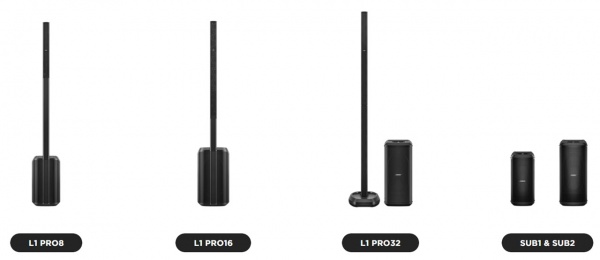
L1 Pro8
L1 Pro16
L1 Pro32
Sub1/Sub2
L1 Pro Technical Data Sheets
- L1 Pro8 Technical Data Sheet
- L1 Pro16 Technical Data Sheet
- L1 Pro32 Technical Data Sheet
- Sub1 Technical Data Sheet
- Sub2 Technical Data Sheet
L1 Pro Service Manuals
L1 Pro Self-Serve Support
Application Guide
L1 Pro Firmware
Resources
L1 Pro Family Selection Guide (product comparison)
Choosing the L1 Pro System That's Right for You (Youtube) / (Facebook livecast)
Bose L1 Pro Technical Training Videos
L1 Pro and the Mobile DJ - video L1 Pro Technical Certification Course (no charge, but you must register)
Articles
Should I get an L1 Pro8 or L1 Pro16?
Should I get an L1 Pro16 or L1 Pro32?
Do I Need to Upgrade from the L1 Compact to the L1 Pro8?
Do I Need to Upgrade from the L1 Model II to the L1 Pro32?
S1 Pro+ x 2 vs L1 Pro8 with T4S
Which L1 Pro for Singer/Songwriter/Electric Guitarist
T1 Compatibility With L1 Pro Systems
Mixer to L1 Pro Connect your third-party mixer to any L1 Pro
L1 Pro and SimpleSync Connect L1 Pro to Bose Smart Speaker Group
L1 Pro32 Separating the Sections of the Mid-High Array
Comparing Specifications
Comparing L1 Pro Models
Bose L1 Pro8 Compared to L1 Pro16
Bose L1 Pro16 Compared to L1 Pro32
Comparing L1 Pro Power Stands to Subs
Legacy to L1 Pro Models
Bose L1 Compact Compared to L1 Pro8
Bose L1 Model 1S Compared to L1 Pro16
Bose L1 Model II Compared to L1 Pro32
Quick Tips
L1 Pro Line Out
The XLR Line Output from any L1 Pro contains the sound from all inputs (1, 2, 3, Bluetooth, and ToneMatch Port). That includes
- ToneMatch Presets
- Tone Controls
- Reverb
- The signal from a ToneMatch mixer connected to the ToneMatch port including ToneMatch Presets, zEQ, Reverb, Effects.
The sound is NOT affected by the L1 Pro System EQ setting.
L1 Pro Daisy Chain
Want to connect one or more L1 Pro systems together? See L1 Pro Daisy Chain
L1 Pro System EQ
The System EQ feature on the L1 Pro systems applies an EQ preset to the master output. This is similar to a graphic equalizer on traditional analogue mixers, but it uses four presets instead for quick access. read more — L1 Pro System EQ
L1 Pro32 Half Stack
- Can I operate the L1 Pro32 with only the lower section of the line array?
- Sometimes there is not sufficient height to use the full array
- Yes
- The L1 Pro32 can be used without the upper array. This configuration is useful when a venue ceiling cannot accommodate the height of the L1 Pro32
Source: Page 7 of the L1 Pro32 Owners Guide
- For best results, ensure array is at ear level for listeners
- Unlike the L1 Model II, the L1 Pro32 automatically adjusts the level of the bass output to maintain the appropriate spectral balance.
- It’s a valid use case to use only the bottom array section. In fact, the EQ automatically adjusts to compensate.
Craig Small - Bose
- Half Stack Not Recommended for Small Gigs
Running only the lower section of the Line Array is a workaround when there isn't enough ceiling clearance to use both sections. For small gigs, turn down the volume on the L1 Pro32, don't run without the top section of the array because
- You'll need to elevate the system so the array is at ear level for the audience. Otherwise, the sound will be muffled
- You will reduce your projection over distance. The sound will drop off more over distance.
- You may need to turn up the volume louder than if you were using the full array. As a result, you increase the likelihood of feedback.
L1 Pro Emergency Kit

These are extras and spares I carry in addition to the items I know I will need at a gig.
| Item | Reason |
|---|---|
| IEC Power Cord | They got lost, and this can be used with an XLR cable to substitute for a SubMatch Cable |
| XLR cable | It's always good to have a spare. Use with an IEC Power Cord to replace a SubMatch Cable |
| 1/4-inch (6.3mm) Tip-Ring-Sleeve Cable | Connect mixers or devices with balanced connections to the L1 Pro. |
| 1/4-inch (6.3mm) Tip-Sleeve Cable | This is your basic instrument cable. It's always good to have a spare. |
| XLR Female to 1/4-inch (6.3mm) Tip-Ring-Sleeve Cable | To connect Line Level Output from an L1 Pro or third-party mixer to Channel 3 input of an L1 Pro or S1 Pro+ |
| 1/8-inch (3.5 mm) Tip-Ring-Sleeve Cable | Use this to connect the headphone output of a consumer device to L1 Pro or S1 Pro(+) channel 3 input |
| CAT5 cable | Connect ToneMatch Mixers (T1/T4S/T8S) to the L1 Pro ToneMatch Port |
| ToneMatch Power Supply | In case I need to run two ToneMatch Mixers to a single L1 Pro |
| Dynamic Microphone | This is a spare; the one to use when you have guest speakers making announcements |
| Microphone Clip | They break |
| Multi-bit Screwdriver | Tighten, loosen, everything as needed |
| Gaffers Tape | Tie down cables, or quick repairs |
| Labels with contact information | I have labels on all my gear, but it's good to have spares in case they fall off |
FAQ
General Questions
| Collapse all
Are the columns made of plastic?
Arrays on all units feature an extruded aluminum sleeve. Perforated grille on the front, solid on the back. Source: Craig Small
Can I swap the columns from different models?
No. While the column arrays and extensions of the L1 Pro8 and L1 Pro16 will fit each other, no sound comes out.
L1 Pro32, can I take off the top column?
Yes
- The L1 Pro32 can be used without the upper array. This configuration is useful when a venue ceiling cannot accommodate the height of the L1 Pro32
Source: Page 7 of the L1 Pro32 Owners Guide
- For best results, ensure the array is at ear level for listeners
- The L1 Pro32 automatically adjusts the level of the bass output to maintain the appropriate spectral balance.
- It’s a valid use case to use only the bottom array section. In fact, the EQ automatically adjusts to compensate.
Craig Small - Bose
- Half Stack Not Recommended for Small Gigs
Running only the lower section of the Line Array is a workaround when there isn't enough ceiling clearance to use both sections. For small gigs, turn down the volume on the L1 Pro32, don't run without the top section of the array because
- You'll need to elevate the system so the array is at ear level for the audience. Otherwise, the sound will be muffled
- You will reduce your projection over distance. The sound will drop off more over distance.
- You may need to turn up the volume louder than if you were using the full array. As a result, you increase the likelihood of feedback.
Inputs and Connections
| Collapse all
Is MIC/INST/OFF the same as a MIC/LINE switch?
No. The MIC/INST/OFF switch is NOT a MIC/LINE selector like those found on many powered loudspeakers.
The switch does not change input sensitivity or gain.
It affects only the ToneMatch Preset applied to the input.ToneMatch Preset Behavior:
- MIC applies the microphone ToneMatch Preset
- INST applies the acoustic guitar ToneMatch Preset
- OFF disables ToneMatch processing
Use MIC for microphones and INST for acoustic guitar. You can change the ToneMatch Presets using the Bose App
Channel ToneMatch Button: Select the ToneMatch preset for an individual channel. The corresponding LED will illuminate white while selected.
More information about ToneMatch Presets
Does the MIC/INST/OFF switch change the input gain?
No. The MIC/INST/OFF switch does not change input sensitivity or gain.
It only selects the ToneMatch Preset applied to the input.
It does not adjust the channel’s gain staging or level.ToneMatch Preset Behavior:
- MIC applies the microphone ToneMatch Preset
- INST applies the acoustic guitar ToneMatch Preset
- OFF disables ToneMatch processing
Use MIC for microphones and INST for acoustic guitar. You can change the ToneMatch Presets using the Bose App
Channel ToneMatch Button: Select the ToneMatch preset for an individual channel. The corresponding LED will illuminate white while selected.
More information about ToneMatch Presets
How do I connect a monitor?
* You can connect the L1 Pro Line Out to a monitor.
The XLR Line Output from any L1 Pro contains the sound from all inputs (1, 2, 3, Bluetooth, and ToneMatch Port). That includes
- ToneMatch Presets
- Tone Controls
- Reverb
- The signal from a ToneMatch mixer connected to the ToneMatch port including ToneMatch Presets, zEQ, Reverb, Effects.
The sound is NOT affected by the L1 Pro System EQ setting.
- If you have an S1 Pro, see L1 Pro to S1 Pro
- If you have an S1 Pro+, see L1 Pro to S1 Pro+
- If you prefer to run your inputs to the S1 Pro+ and send the output to the L1 Pro, see S1 Pro+ To L1 Pro
- If you have a mixer, you may prefer to send the monitor mix from the mixer to the monitors instead of the L1 Pro Line Out
The L1 Pro was designed to be placed behind the performers. If you can do that, you may not need a monitor — you should be able to hear yourself clearly. For more about that, see The L1® Approach and the History Of Amplification.
How do I connect a third‑party mixer to the L1 Pro?
Use the Mixer Mono Output and connect it to L1 Pro Channel 3.
If the mixer does not have a mono output, pan all inputs hard LEFT and use the LEFT output. We will now refer to that as the Mixer Mono Out.
If the mixer has XLR outputs:
- Mixer Mono Out → XLR Female → ¼″ (6.3 mm) Tip‑Ring‑Sleeve → L1 Pro Channel 3
If the mixer has ¼″ (6.3 mm) Tip‑Ring‑Sleeve outputs:
- Mixer Mono Out → ¼″ (6.3 mm) Tip‑Ring‑Sleeve → L1 Pro Channel 3
For more details, see Mixer to L1 Pro.
Can I use XLR cables from my mixer into Channels 1 or 2?
You can, and it might work. Click for details
And yes, there are even pictures of this in the L1 Pro manuals.
However, using XLR‑to‑XLR connections from a mixer into Channels 1 or 2 can lead to problems.
1. Some mixers have a MIC/LINE or ‑20 dB switch on the XLR output
If your mixer can switch its XLR output to MIC or ‑20 dB, then engage that switch and the XLR‑to‑XLR connection should work.
If not, use Mixer Mono Out → XLR Female → ¼″ (6.3 mm) Tip‑Ring‑Sleeve → L1 Pro Channel 3.
2. Most mixer XLR outputs are line‑level, which is a poor match for the L1 Pro’s mic‑level XLR inputs
This mismatch can cause:
- Input clipping
- Harsh distortion
- Unpredictable behavior
3. You can sometimes “make it work,” but it’s not ideal
You might avoid clipping by:
- Turning down the mixer output
- Turning down the L1 Pro channel volume
However:
- Lower mixer output reduces signal‑to‑noise ratio (more hiss)
- Very low L1 Pro channel settings give almost no usable range
- Volume may jump from too quiet → too loud with tiny adjustments
4. Channel 3 avoids all of these issues
Channel 3 is designed for line‑level sources and provides:
- Proper level matching
- Lower input sensitivity (less likely to clip/distort)
- Full +24 dBu headroom
- Predictable behavior
- No ToneMatch presets
- No Reverb
- No DSP gain steps
This is why the recommended method is:
- Mixer Mono Out → XLR Female → ¼″ (6.3 mm) Tip‑Ring‑Sleeve → L1 Pro Channel 3
Why are the ¼″ (6.3 mm) Tip‑Ring‑Sleeve inputs on Channels 1 and 2 louder than the ¼″ (6.3 mm) Tip‑Ring‑Sleeve input on Channel 3?
By design, the input sensitivity of the Channel 3 ¼″ (6.3 mm) Tip‑Ring‑Sleeve input is lower than the ¼″ (6.3 mm) Tip‑Ring‑Sleeve inputs on Channels 1 and 2. This allows Channel 3 to handle line‑level sources with less risk of clipping.
You can achieve the same overall output level from Channel 3, but you may need to turn the Channel 3 volume control higher to do it.
This difference is most noticeable when connecting a third‑party mixer to the L1 Pro.
People tend to hear louder as better, so you may prefer to use Channels 1 and 2 instead of 3, but you can get the same result by turning up the volume on Channel 3, leaving the other channels available.
For more information, see Mixer to L1 Pro.
Multiple L1 Pro Systems
| Collapse all
What can and can’t multiple L1 Pros do together?
Multiple L1 Pros can be used together, but each system still operates independently.
- What they can do
- Pass audio from one unit to another using the L1 Pro Line Out (Daisy Chain)
- With a mixer
- Play the same signal if you feed each unit from a mixer
- Work as a stereo pair when fed LEFT and RIGHT outputs from a mixer
What they can’t do
- Share their internal inputs with each other
- Combine all inputs from two units into one system
- Link wirelessly over Bluetooth (Bluetooth is receive‑only)
For details on specific setups, see the related questions below.
How do I connect one L1 Pro to another L1 Pro (daisy chain)?
Use XLR Female → ¼″ (6.3 mm) Tip‑Ring‑Sleeve to connect
- From the first L1 Pro Line Out
- To the second L1 Pro Channel 3 ¼″ (6.3 mm) Tip‑Ring‑Sleeve input.
For complete details, see L1 Pro Daisy Chain.
Can I use Bluetooth to connect two L1 Pros?
No.
L1 Pro systems can receive Bluetooth audio from a Bluetooth source (for example, a phone, tablet, or computer). They cannot send Bluetooth to another L1 Pro, and even if they could, the latency (delay) would make this unusable in a live sound setting.
For more information see L1 Pro Daisy Chain
Can I run two L1 Pros as a single mono system?
No, you need a mixer to do this.
An L1 Pro cannot link its inputs or internal mix to another L1 Pro. Each unit only plays the signals connected to its own inputs.
If you want both L1 Pros to play the same mono mix, use a mixer and send the same output to each unit:
- From the mixer Mono Output → L1 Pro (Left) Channel 3 ¼″ (6.3 mm) Tip‑Ring‑Sleeve input
- From the mixer Mono Output → L1 Pro (Right) Channel 3 ¼″ (6.3 mm) Tip‑Ring‑Sleeve input
This gives you two identical mono feeds, but the L1 Pros still operate as separate systems.
For more details, see Dual Mono.
How do I connect two L1 Pros for stereo?
To run two L1 Pros in stereo, send the LEFT and RIGHT outputs from your mixer to each L1 Pro separately.
- From the mixer LEFT Output → L1 Pro (Left) Channel 3 ¼″ (6.3 mm) Tip‑Ring‑Sleeve input
- From the mixer RIGHT Output → L1 Pro (Right) Channel 3 ¼″ (6.3 mm) Tip‑Ring‑Sleeve input
Each L1 Pro then reproduces its own channel (Left or Right), creating a stereo pair.
For more details, see Mixer to L1 Pro.
Can I connect my L1 Pros so they share inputs?
You can't.
- You cannot take the three inputs on each L1 Pro and hear all six inputs through both units.
- While you can daisy chain the inputs of the first L1 Pro to a second L1 Pro, you cannot send the inputs of the second L1 Pro back to the first. Doing so will create a feedback loop.
For more details, see L1 Pro Daisy Chain.
Can I run two L1 Pros in mono without a mixer?
You can't.
There is no way to link two L1 Pros so they both play the same mono signal without using an external mixer.
Each L1 Pro only plays the signals connected to its own inputs.
If you need both L1 Pros to reproduce the same mono mix, you must use a mixer and send the same output to each unit.
For more details, see Mixer to L1 Pro.
Troubleshooting
| Collapse all
The L1 Pro sounds muddy
- Symptoms
No mid-highs, low volume, it's all bass
- Possible Causes
L1 Pro speaker column or extension not seated properly.
- Solutions
Make sure the column arrays are seated firmly in the power stand
Excessive Hiss
Hiss with nothing connected to the L1 Pro inputs when I turn up the volume
- Symptoms
Hiss with nothing connected, volume turned up
- Possible Causes
with no input, turning up the volume amplifies noise
- Solutions
turn down the volume or mute any unused channels For more details see L1 Pro Hiss
Hiss when connecting the LINE OUT from an L1 Pro to a second L1 Pro with an XLR cable
- Symptoms
Hiss, noise, clipping
- Possible Causes
LINE OUT from the first L1 Pro is line-level.
XLR input on the second L1 Pro is microphone-level
- Solutions
Connect the first L1 Pro LINE OUT to the second L1 Pro Channel 3 input The cable: Female XLR to 1/4-inch (6.3mm) Tip-Ring-Sleeve cable For more details see L1 Pro Daisy Chain
Hiss when connecting a mixer to the L1 Pro Channels 1 or 2 with an XLR cable
- Symptoms
Hiss, noise, clipping
- Possible Causes
No causes provided
- Solutions
Connect the mixer mono output to the L1 Pro Channel 3 input The cable: Female XLR to 1/4-inch (6.3mm) Tip-Ring-Sleeve cable For more details see Mixer to L1 Pro
Sub1/Sub2
Bose App / Music App / L1 Mix App
As of 2025 The current app for Bose Portable PA is the Bose App.
This applies to all L1 Pro and the S1 Pro+
Get it on the Google Play Store or the Apple App Store.
ToneMatch Mixers

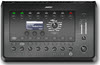
Engineered with a powerful DSP engine and intuitive user control, the T4S/T8S ToneMatch mixers offer studio-quality EQ, dynamics and effects. Sound great with integrated BoseToneMatch processing and zEQ, especially when connected to a Bose L1 or F1 system for full end-to-end tonal control.
read more — T4S/T8S ToneMatch® Mixers